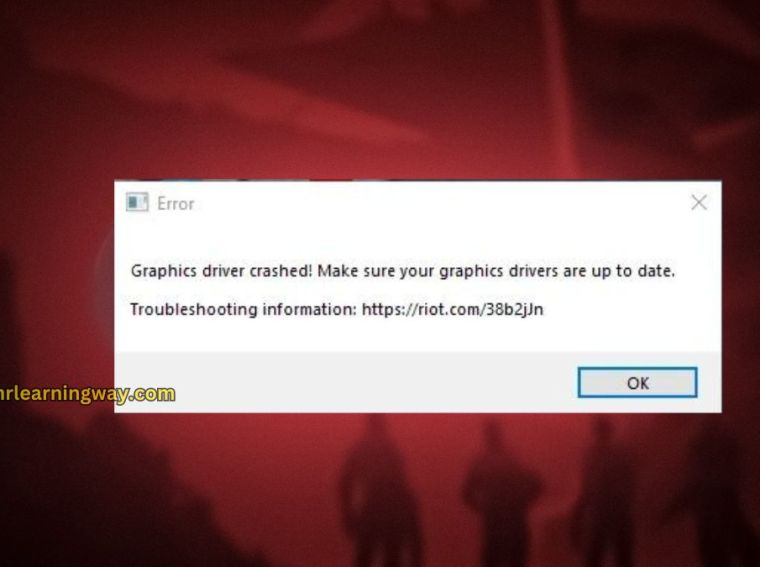
Many PC players report The Outlast Trials not launching, crashing at startup, freezing on load, or showing a black screen. These issues can ruin the horror experience instantly. Fortunately, several proven fixes can restore smooth gameplay quickly. 🎮🛠️
Why The Outlast Trials Keeps Crashing on PC ⚠️
This problem usually happens due to system conflicts or corrupted data. Common causes include:
- Outdated GPU drivers or Windows updates
- Corrupted game or shader files
- DirectX or Visual C++ issues
- Overlay or background app conflicts
- Incompatible graphics settings
Fixing these issues step by step delivers stable performance. ✅
Step 1: Restart PC and Run the Game as Administrator 🔄
A clean system start clears temporary glitches.
- Restart your PC completely
- Right-click The Outlast Trials executable
- Select Run as administrator
This grants full permissions and often fixes startup crashes. ✔️
Step 2: Verify Game Files (Steam) ✅
Corrupted files cause black screen and loading freezes.
- Open Steam Library
- Right-click The Outlast Trials
- Go to Properties > Installed Files
- Click Verify integrity of game files
Steam replaces missing or broken files automatically. 🧩
Step 3: Update GPU Drivers 🎮
Outdated drivers are a major crash reason.
- Update via NVIDIA GeForce Experience
- Or use AMD Adrenalin Software
- Restart PC after updating
New drivers improve DirectX stability and performance. ⚡
Step 4: Disable Overlays and Background Apps 🚫
Overlays may trigger freezing or startup crashes.
Disable these apps temporarily:
- Steam Overlay
- Discord Overlay
- GeForce Overlay
- Xbox Game Bar
Close background apps using Task Manager for better stability. 🧹
Step 5: Change Launch Options ⚙️
Incorrect DirectX settings can cause black screens.
- Open Steam > Library
- Right-click the game > Properties
- In Launch Options, try:
-dx11 - Launch the game
This forces DirectX 11, improving compatibility. 🔧
Step 6: Clear Shader Cache 🧠
Corrupted shaders can cause freezing and stuttering.
- Press Win + R
- Type
%localappdata% - Open NVIDIA or DXCache folders
- Delete shader cache files
- Restart PC
This rebuilds clean shader data. ✨
Step 7: Update Windows and DirectX ⬆️
Missing system updates cause crashes.
- Go to Settings > Windows Update
- Install all pending updates
- Download latest DirectX Runtime
Updated system files improve game compatibility. 🖥️
Step 8: Adjust Graphics Settings 🎚️
Lower settings reduce crashes on weaker systems.
- Set Graphics Preset: Medium
- Disable Motion Blur
- Lower Shadows and Effects
- Enable Windowed Borderless
Balanced settings improve stability instantly. ⚙️
Step 9: Reinstall Visual C++ Redistributables 📦
Missing libraries prevent proper launch.
- Download latest Visual C++ 2015–2022
- Install both x64 and x86 versions
- Restart PC
These files are essential for Unreal Engine games. 🧩
Step 10: Reinstall The Outlast Trials 🔁
If nothing works, reinstalling fixes deep corruption.
- Uninstall the game from Steam
- Restart your PC
- Reinstall on the same drive
This removes persistent crash files. 🛠️
Conclusion ✅
The Outlast Trials not launching, crashing, freezing, or showing a black screen is frustrating but fully fixable. Start with verifying files and updating drivers. Then disable overlays and clear shader cache.