Tag: valorant

valorant not updating

how to fix valorant not updating 2023

                                                 Valorant not updating

  About Valorant not updating, it can be frustrating for players who desire to experience the latest patches and gameplay features.  

  The game’s developers take pride in rolling out frequent and significant Valorant not updating to keep the game fresh and engaging.

However, many players encounter issues with the updater, causing the game to fail to update correctly or not update at all. This problem can stem from various reasons, ranging from client-side errors to server issues.

Whatever the cause, not being able to update Valorant down can lead to gamers missing out on the latest content and, in some cases, even affecting the game’s performance. It is crucial for players to seek help and solutions from the game’s support team quickly.  

why this valorant not updating

  As a professional blog post writer, it’s not uncommon for me to come across complaints from gamers about their favorite game not updating.

Recently, I noticed that a lot of Valorant players have been expressing their frustration on different online platforms about why their game is Valorant not updating. Well, there could be several reasons why this is happening.

Firstly, it’s possible that the server you’re trying to connect to is down for maintenance; in this case, you simply need to wait until the server is back up before attempting to update again.

Secondly, you may need to clear your game cache or delete the game files and re-download them.

Lastly, it could be a bug in the game client, in which case you should try contacting the support team for assistance. Whatever the reason, don’t worry; there’s always a solution.  

how to fix valorant not updating

1.Restart the computer

  • First step, you try to close the game.

valorant not updating

  • After restarting your device or computer.

2.Clear Temp File:

  •  Press the win+x key, click the Run open it. 

valorant not updating

  • After type the command %localappdata% and ok click. 
  • Find the Temp folder or file open it. 

valorant not updating

  • Insert select all file ctrl + A press. 
  • Delete from this all file.

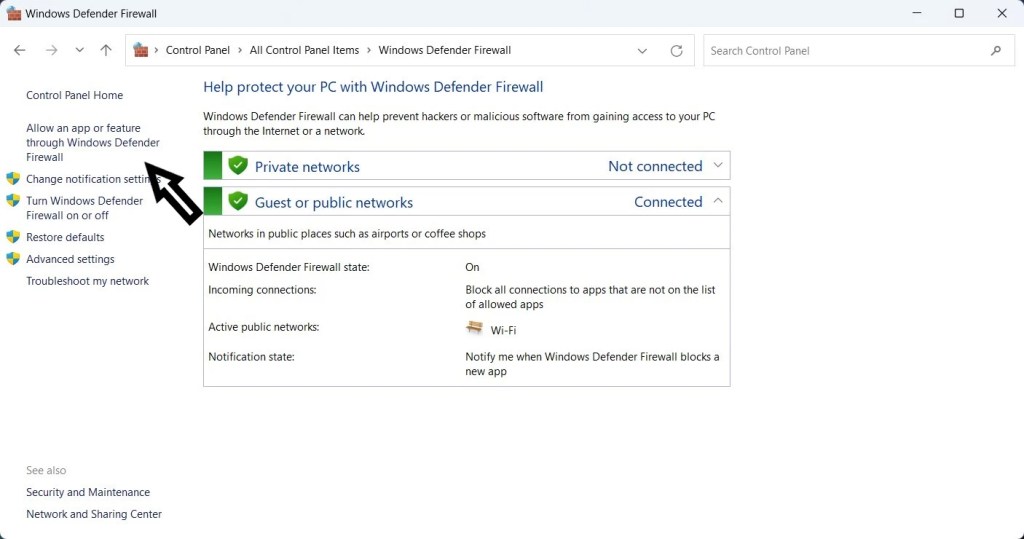
3.Allowing Valorant Through Windows Defender Firewall:


    • Type “Windows Defender Firewall” in the Windows search bar and select the windows defender firewal. 
  •     
    • Click on Allow an App or Feature Through Windows Defender Firewall.
  •  
    • In the left panel of the Firewall settings window, click on the option labeled Allow an app or feature through Windows Defender Firewall.
  •  
    • Click on “Change Settings” (Administrator Permission May Be Required):
  •  
    • If prompted for administrator permission, click on Change settings to modify the firewall settings.
  •  
    • Scroll through the list of apps and features until you find “Valorant.” If it’s not listed, click the “Allow another app…” button and browse for the Valorant executable file.
  •  
    • Click the “Browse” button and navigate to the folder where Valorant not updating is installed (usually “C:\Riot Games\VALORANT”).
  •  
    • Select the “VALORANT-Win64-Shipping.exe” file and click “Open.”
  •  
    • In the same row as “Valorant,” make sure both the “Private” and “Public” checkboxes are checked. This allows Valorant to communicate on both private and public networks.
  •  
    • Click “OK” to Save Changes.
  •  
    • Once you’ve selected “Valorant” and configured the appropriate checkboxes, click the “OK” button to save your changes.

other methods

If you’re encountering issues with Valorant not updating, fret not, as there are several troubleshooting steps you can take to resolve the issue.

Firstly, ensure that you have a stable internet connection by checking your network settings and restarting your router if necessary.

It’s also wise to temporarily disable any antivirus or firewall software that may be blocking the update process.

Additionally, verifying the integrity of the game files through the game launcher or reinstalling the game entirely can often fix update-related problems.

If these steps do not work, reaching out to the official Valorant support team or searching the game’s online community for any ongoing issues may provide further assistance.

Remember, patience and persistence are key when addressing any update-related hurdles in Valorant.

conclusion

In conclusion, the lack of regular updates in Valorant is a topic of concern among its dedicated player base.

The game developers should recognize the importance of keeping the game fresh and exciting by introducing new content, features, and balance changes riot games.

Without timely updates, players may lose interest and move on to other games that offer a more dynamic and evolving experience.

It is crucial for the success and longevity of Valorant to prioritize consistent updates that address player feedback, introduce new maps, characters, and game modes, and maintain a healthy meta.

By doing so, Valorant can continue to thrive in the competitive gaming industry and maintain its position as a top choice for players.


how to fix valorant fps drops 2023

                                         Valorant fps drops

Valorant is a popular first-person shooter game that has taken the gaming world by storm.However, one of the most frustrating issues that players face is FPS (frames per second) drops.


FPS drops result in a reduced game performance, making the game laggy, choppy, and unresponsive.


This can be particularly frustrating for players who are trying to maintain high scores or participate in competitive play.


It’s essential to identify and fix the problem of FPS drops to ensure that the game runs smoothly.


In this post, we’ll explore the common causes of Valorant FPS drops and provide some solutions to fix the issue.


why this valorant fps drops


Why this Valorant FPS drops? It’s a common question that many players ask themselves when they experience a sudden drop in their Valorant FPS drops during gameplay.


FPS (frames per second) is a crucial aspect of any first-person shooter game as it determines the smoothness and responsiveness of the gameplay.


Valorant is known for its competitive gameplay and a high level of precision, making it essential to maintain a consistent Valorant FPS drops rate.


However, due to various factors, such as computer specifications, outdated drivers, or network connectivity issues, players may experience FPS drops, which can affect gameplay experience.


Identifying and fixing the root cause of FPS drops is crucial to maximize gaming performance and enjoy the game to its fullest.


 how to fix valorant fps drops

1.Restart the computer

  • First step, you try to close the game.
valorant fps drops
  • After restarting your device or computer.

2.Clear Temp File:

  •  Press the win+x key, click the Run open it. 
valorant fps drops
  • After type the command %localappdata% and ok click. 


  • Find the Temp folder or file open it. valorant fps drops
  • Insert select all file ctrl + A press. 


  • Delete from this all file.

Allowing Valorant Through Windows Defender Firewall:


    • Type “Windows Defender Firewall” in the Windows search bar and select the windows defender firewal. 
  •     
    • Click on Allow an App or Feature Through Windows Defender Firewall.
  •  
    • In the left panel of the Firewall settings window, click on the option labeled Allow an app or feature through Windows Defender Firewall.
  •  
    • Click on “Change Settings” (Administrator Permission May Be Required):
  •  
    • If prompted for administrator permission, click on Change settings to modify the firewall settings.
  •  
    • Scroll through the list of apps and features until you find “Valorant.” If it’s not listed, click the “Allow another app…” button and browse for the Valorant executable file.
  •  
    • Click the “Browse” button and navigate to the folder where Valorant is installed (usually “C:\Riot Games\VALORANT”).
  •  
    • Select the “VALORANT-Win64-Shipping.exe” file and click “Open.”
  •  
    • In the same row as “Valorant,” make sure both the “Private” and “Public” checkboxes are checked. This allows Valorant to communicate on both private and public networks.
  •  
    • Click “OK” to Save Changes.
  •  
    • Once you’ve selected “Valorant” and configured the appropriate checkboxes, click the “OK” button to save your changes.

other methods


Valorant, the popular online tactical first-person shooter, is known for its fast-paced gameplay and competitive nature.


However, one common issue that many players face is the occasional FPS drop, which can hamper their gaming experience and hinder their performance.


Fortunately, there are several steps you can take to address and fix Valorant FPS drops.


Firstly, ensure that your PC meets the minimum system requirements of Valorant. Check if your hardware, including your graphics card and processor, is up to par.


Outdated or insufficient hardware can cause a significant decrease in Valorant FPS drops. Consider upgrading your components if needed.


Next, optimize your graphics settings within the game. Lowering certain graphical settings, such as the resolution, shadows, and effects, can significantly improve FPS stability.


Experiment with different settings to find a balance between visual quality and performance.


Updating your graphics card driver is another essential step. Manufacturers regularly release driver updates to optimize performance and fix issues.


Visit the website of your graphics card manufacturer and download the latest drivers for your specific model.


Managing background processes and disabling unnecessary applications is crucial. Unwanted programs running in the background can consume valuable system resources, resulting in FPS drops.


Close any unnecessary applications and consider disabling startup programs to free up resources for Valorant.


Additionally, have a check on your PC’s temperature. Overheating can lead to FPS drops and overall performance degradation.


Ensure that your PC is clean and well-ventilated, with fans operating properly. Consider using software applications to monitor and regulate your PC’s temperature.


Lastly, if the above steps do not resolve the issue, you may want to consider upgrading your hardware.


Increasing your RAM, upgrading your graphics card, or even opting for a solid-state drive (SSD) can significantly improve the overall performance and stability of Valorant.

 
In conclusion, experiencing FPS drops in Valorant can be frustrating, but with the right approach, it can be resolved.
 
By ensuring your PC meets the minimum requirements, optimizing graphics settings, updating drivers, managing background processes, and monitoring your PC’s temperature, you can enjoy a smoother and more enjoyable gameplay experience in Valorant down.
 

conclusion

In conclusion, the issue of Valorant FPS drops has become a significant concern among players.

While the game offers thrilling gameplay and a competitive environment, the occurrence of frequent frame rate drops can significantly impact the overall gaming experience.

Several factors may contribute to this issue, including hardware limitations, incompatible software, or even network instability.

However, it is crucial to note that Riot Games, the developer of Valorant, has been consistently working on addressing these performance issues through regular updates and optimizations.

Players can also take certain measures on their end to minimize FPS drops, such as optimizing their system settings, updating drivers, and closing unnecessary background applications.

By striving for a balance between graphics quality and performance, Valorant support players can enjoy smooth gameplay, enhancing their overall gaming experience.


valorant not opening

how to fix valorant not opening 2023

 how to fix valorant not opening

About Valorant not opening, it is undoubtedly frustrating for players who are eager to jump into the game support but are met with technical difficulties. From server issues to compatibility problems, there are various reasons why Valorant may fail to launch. While some users find success with troubleshooting solutions such as updating drivers or reinstalling the game, others may need to seek support from Riot Games. It’s important for game developers to address and resolve these issues promptly to ensure the best gaming experience for their community. Nevertheless, it’s always advised to keep your system updated and perform routine maintenance to ensure the smoothest possible gaming experience.  

why this valorant not opening

  As a gamer, there’s nothing more frustrating than being unable to play your favorite game. One of the most common issues faced by Valorant players is the game not opening. There could be several reasons why this happens, such as outdated drivers, corrupted game files, or even server issues. It’s essential to troubleshoot the problem to identify the root cause and find a suitable solution. Ignoring the issue or continuing to play the game with a workaround could lead to more significant problems down the line. Therefore, if you’re facing issues with Valorant not opening, it’s crucial to take the time to investigate and resolve the problem correctly.  

how to fix valorant not opening

1.Restart the computer

  • First step, you try to close the game.  
valorant not opening
  • After restarting your device or computer.

2.Clear Temp File:

  •  Press the win+x key, click the Run open it. 
valorant not opening
  • After type the command %localappdata% and ok click. 
valorant not opening
  • Find the Temp folder or file open it. 
  • Insert select all file ctrl + A press. 
valorant not opening
  • Delete from this all file.

3.Change dns address

  • Press the win+x key and click the Run open it.
valorant not opening
  • After type the command ncpa.cpl and ok click.
  • Now open it for Network connection tab.
valorant not opening
  • Then right-click on your connecting network adapter.  
  • Select the Properties.
  • Find internet protocal version 4 (TCP/IPv4) by clicking on it.
valorant not opening
  • Below click Properties and select Use the following DNS server Addresses.  

Given use this value DNS server:  

Preferred Dns server:     8.8.8.8

Alternate Dns server:   8.8.4.4                   

(OR)

Preferred Dns server:     1.1.1.1

Alternate Dns server:   1.0.0.1   Press OK and close the All tab.


other methods

Valorant is an incredibly popular online multiplayer game that has gained a massive following since its release.

However, like any other software, it is not immune to technical glitches.

If you find yourself struggling with Valorant not opening, fear not, as there are several troubleshooting tips you can try to get it up and running smoothly again.

First, check your internet connection and make sure it is stable. Unstable or slow internet can prevent the game from opening properly.

Additionally, ensure that your computer meets the minimum system requirements for running Valorant.

Outdated drivers and software can also cause problems, so it is crucial to keep them updated.

Restarting your computer and reinstalling the game are also often effective solutions.

If none of these methods work, reaching out to the official Valorant support team can provide further assistance.

Remember, technical issues are part of any gaming experience, but with a little patience and these troubleshooting tips, you’ll be back in the game in no time.

conclusion


In conclusion, the issue of Valorant not opening has become a source of frustration for many players.

While the game has gained immense popularity for its unique gameplay and strategic elements, technical glitches and errors can hinder the overall gaming experience.

It is important for developers to address these issues promptly and provide effective solutions to ensure a smooth gaming experience for all players.

Additionally, players should explore troubleshooting options such as updating drivers, verifying game files, and ensuring compatibility with their system requirements.

By overcoming these obstacles and working collaboratively, both developers and players can contribute to the success of Valorant and create an enjoyable gaming environment for all.